← All releases

Product update ·

Product updates · November 3, 2026

Download Markdown

Manage your plan and earned percentage upgrades from Billing

What changed

Your SyncaRent plan options now live on the Billing page. Admin Settings includes a direct link to take you there.

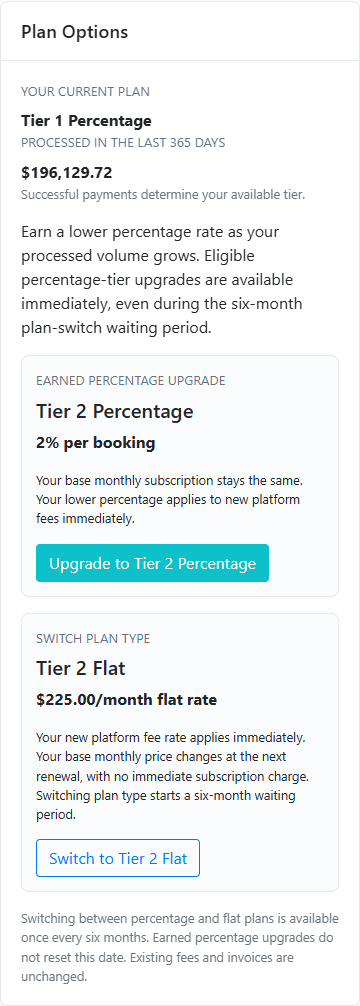
If you use a percentage plan and your successful payments over the last 365 days qualify you for the next tier, Billing now offers an earned upgrade to a lower percentage rate. You can accept that upgrade immediately, even during the six-month waiting period for switching plan types. Your base monthly subscription price stays the same.

How to use it

1. Open Billing → Plan Options, or select View Plan Options in Billing in Admin Settings. 2. Review your current plan, processed volume, and available options. 3. Select the earned percentage upgrade or an available plan-type switch, then confirm.

Under the current tiers, Tier 1 percentage customers qualify for Tier 2 after processing more than $100,000 in the last 365 days; Tier 2 customers qualify for Tier 3 after more than $250,000. The page shows the next eligible tier.

When changes apply

Your new platform fee rate applies to new fees immediately. Existing fees and invoices stay unchanged. Earned percentage upgrades keep your monthly subscription price and do not restart the plan-type waiting period.

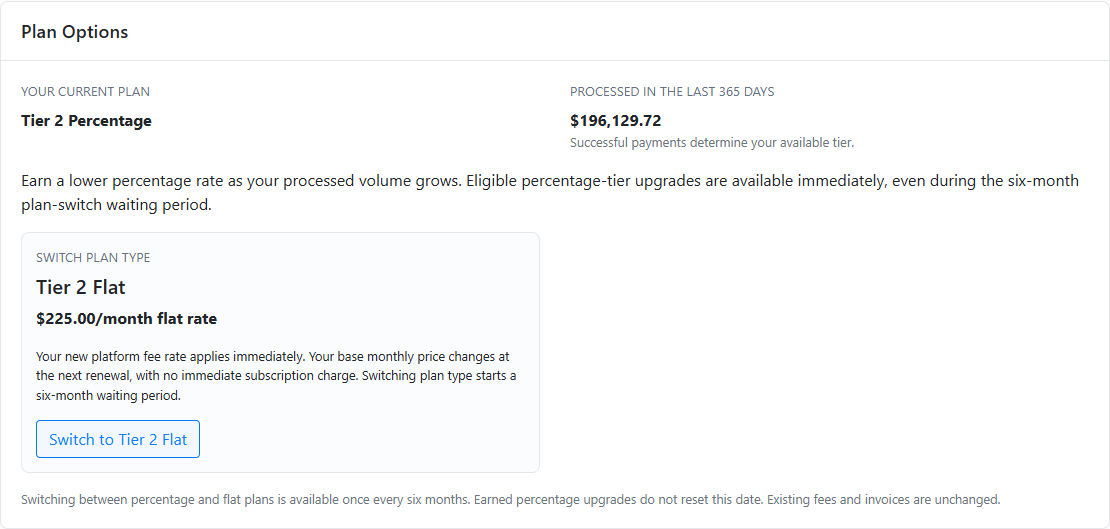
Switching between percentage and flat plans remains available once every six months. A plan-type switch updates the base monthly price for the next renewal without an immediate subscription charge.

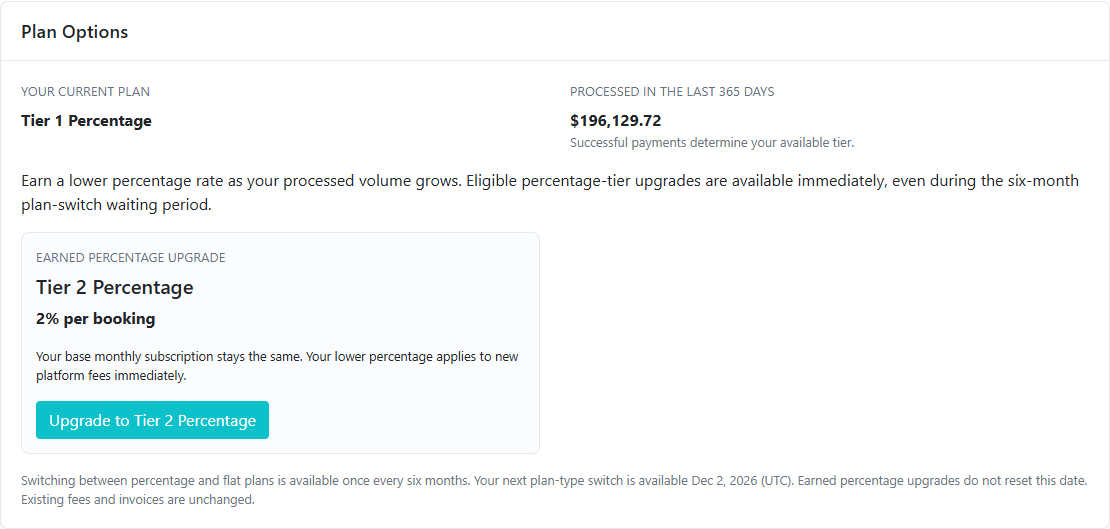
The screenshots and short clip show the demo site, including an earned upgrade during a waiting period and the mobile layout.
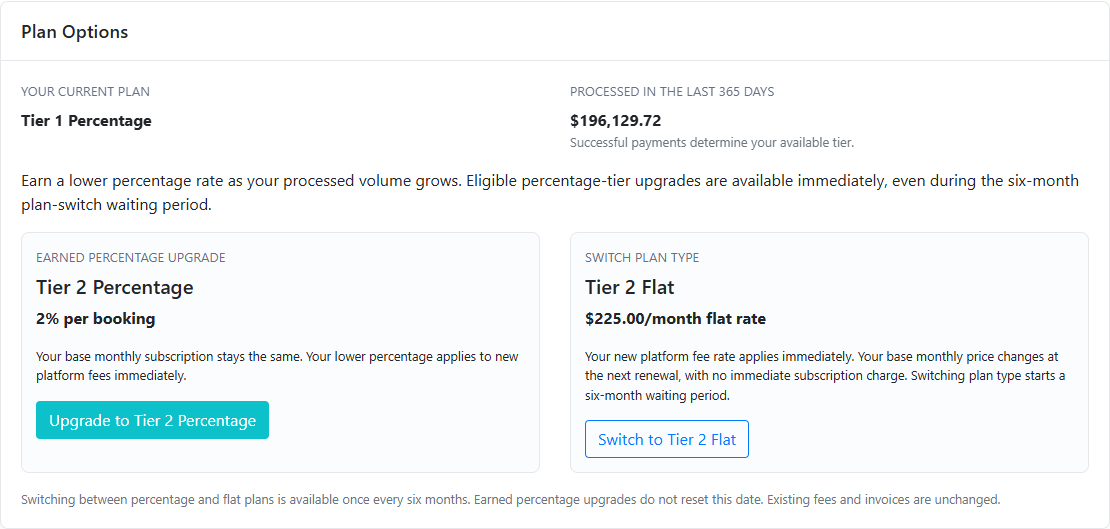
Demo Billing: earned percentage upgrade and available flat-plan option.
Demo: an earned percentage upgrade remains available during the plan-type waiting period.
Demo: plan options on a phone-sized screen.
Admin Settings links directly to Plan Options in Billing.
Short demo clip: reviewing the two available plan options.

Earn percentage upgrades while add-on changes are scheduled

What changed

An eligible percentage-tier upgrade can now proceed while SyncaRent add-on changes are scheduled, provided those changes keep the same base subscription price. Previously, a general warning blocked this upgrade.

Your earned upgrade lowers the percentage for new platform fees. It preserves your monthly subscription price, renewal date, scheduled add-on changes and existing plan-type waiting period.

How to use it

Open Billing → Plan Options, choose your earned percentage upgrade, and confirm. Billing shows a success message and your new tier.

Switching between percentage and flat plans changes the monthly subscription price. If a subscription change is already scheduled, Billing now explains that support must coordinate the plan-type switch. Cancellation, paused collection and other unsupported billing arrangements also receive specific explanations.

The demo screenshots and clip show the clearer plan-type warning followed by a successful earned upgrade with the existing add-on schedule preserved.

Demo: Tier 2 Percentage after the earned upgrade; the scheduled add-on changes are preserved.
Billing confirms the earned percentage upgrade.
A plan-type switch explains why an existing schedule needs support coordination.
Actual demo: the plan-type warning and successful earned percentage upgrade.

Consignment owners are easier to edit

What changed

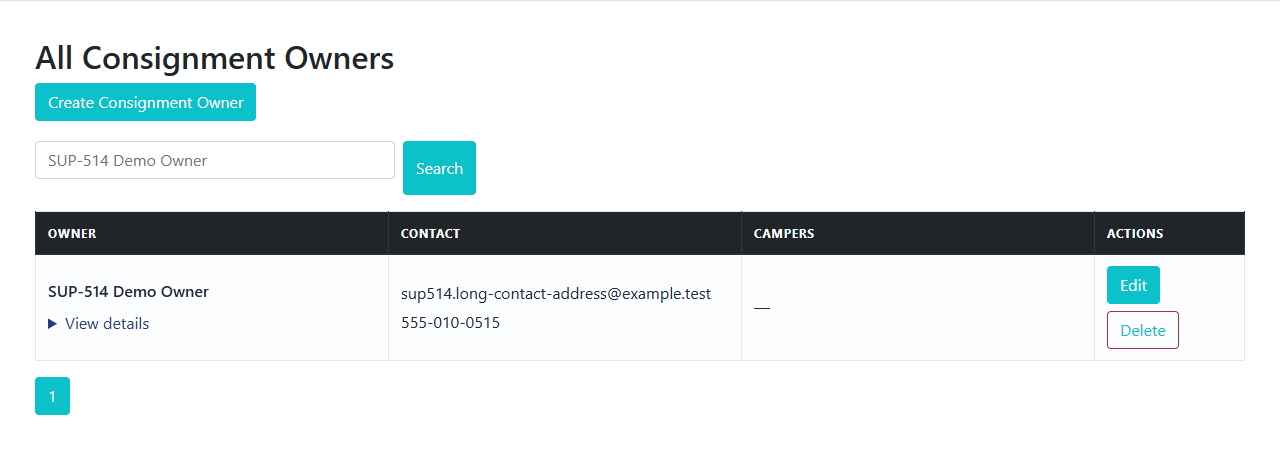
Consignment Owners now uses a compact layout like Add-ons, making each owner's Edit button easy to reach without scrolling sideways.

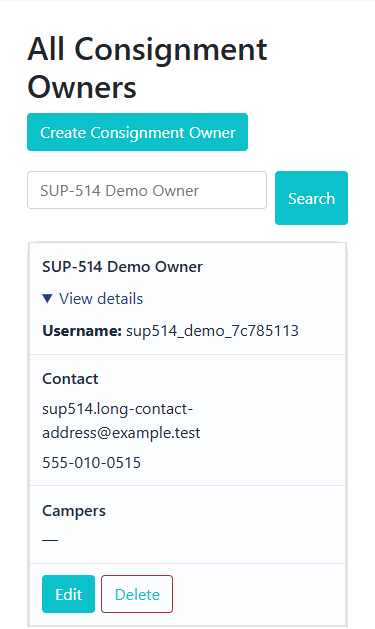
Owner names, contact information, and assigned campers are grouped into readable columns. Long text wraps, and the list stacks into individual owner cards on smaller screens.

Where to find it

Open Consignments → View Consignment Owners. Search for an owner, then select Edit to update their information using the existing form. Select View details to see their username.

The screenshots and walkthrough use a fictional demo owner.

Demo: grouped owner information with an easy-to-reach Edit button.
Demo: owner details and actions stack on a phone.
Demo: expand owner details and view the responsive layout.

Clear percentage rates in Booking Details

What changed

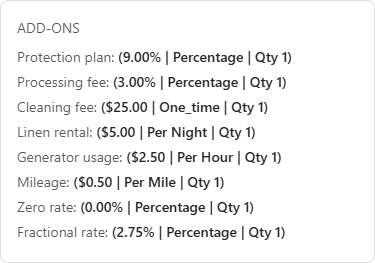
Percentage-based add-ons now show a percent sign in the customer portal's Booking Details. For example, a 9% protection plan displays as 9.00%, and a 3% fee displays as 3.00%.

Fixed-price, nightly, hourly, and mileage add-ons continue to show dollar amounts. This corrects the rate label; booking prices and invoice calculations are unchanged.

Where to find it

Sign in to the customer portal, open View Bookings, and select View Details on a reservation. Scroll to Add-ons to see each rate and its pricing type.

The screenshots and short walkthrough use a fictional demo reservation.

Demo: percentage rates use %, while currency rates retain $.
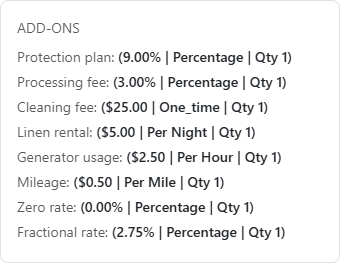
Demo: the same rate labels on a phone.
Demo: open Booking Details and review the add-on rates.